
Leave a note
for when you’re back.
Before you close the laptop or get pulled away, write down where you stopped and what you’ll do next.
Make your return note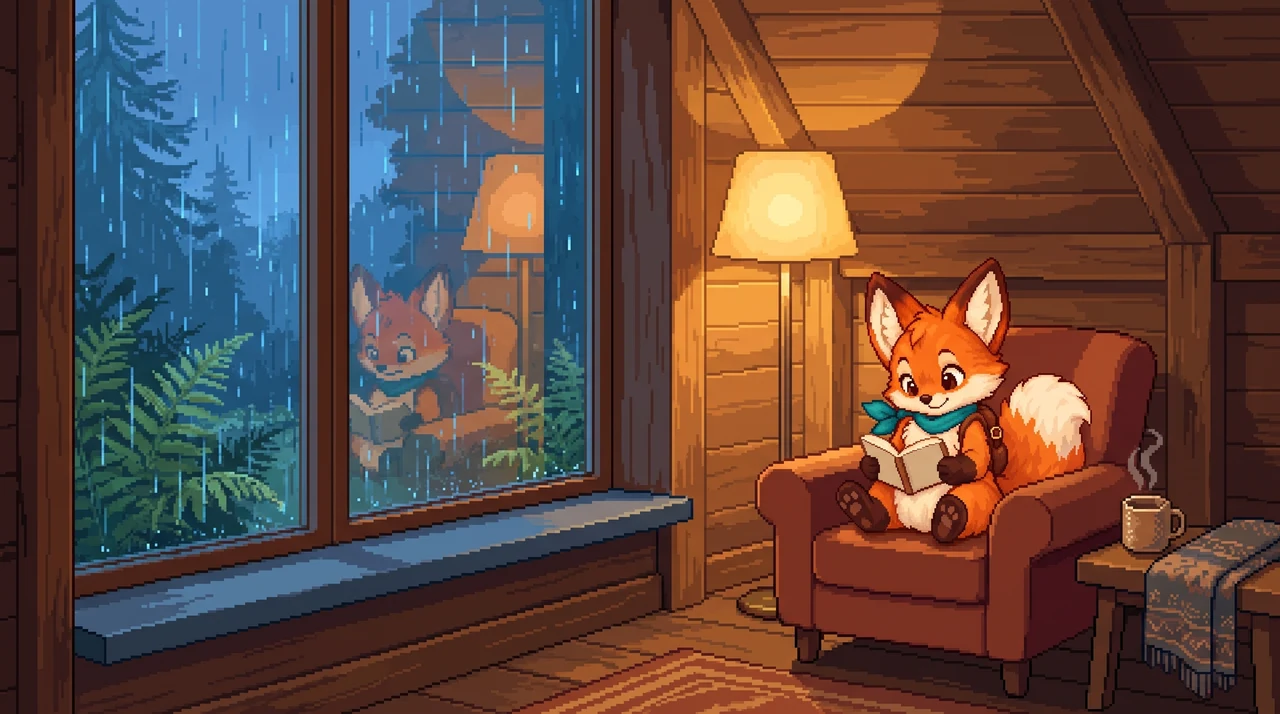
Where did you leave it?
Specific details are useful here. Write the file name or the first thing to check.
My return note
- Where I stopped
- Add a few words about where you stopped.
- When I come back
- Add the first thing you want to do.
Add where you stopped and what comes next to keep your note.

Keep it with
your task.
In Pipwild’s Focus room, you can leave a note when you stop. It stays with the task, ready for when you pick it up again.
See how return notes work in PipwildKeep the link in your inbox.
We can email you the blank template. Your typed note stays on this page. If you want help getting started with Pipwild, you can choose that separately.
Checking email delivery…
Open your notebook anywhere.
Use the same Google account on your phone or computer. Your saved notes and tasks stay together.
Create a free account Sign in with Google. Free to use, with daily limits for AI features.Read the transcript and description
When you have to stop halfway through something, leave a note about where you got to. For this email, the draft is ready, but the address still needs checking. Save that with the task before you pause. When you come back, the note is there beside Resume, so you can pick it up from there. You can make a return note on Pipwild’s free page and copy it wherever you work.
On screen Pip writes at a desk while rain falls outside. Actual app screens show a task called “Send the email,” its saved note, and the paused Focus screen with the same note beside Resume. The film ends with a link to the free return-note page.